Skip to content
Back to work
Side project · Technical test

Tallera

Mobile app connecting people who want to teach and learn through workshops such as cooking, yoga, languages or art.
Client
Side project · Technical test
Role
UX/UI Designer end-to-end
Year
2025
Tools
Figma
Deliverables & impact
01
Two end-to-end flows split by role: teacher and student
02
Low- and high-fidelity wireframes of the complete app
03
Screen-by-screen functional definition of both flows

A new era of workshops

This is a mobile app designed to connect people interested in teaching and learning through workshops such as cooking, yoga, languages, art and more.

Instructors can offer classes in person or online, manage their workshops, receive bookings, communicate directly with their students and keep track of their schedule.

Students, in turn, can search for and choose workshops based on their budget, interests and availability. They can also review the teacher's profile, message them, manage their classes, rate them and handle their payment methods, all from the same platform.

The experience is real-time, flexible and designed to make learning and organisation easier for teachers and students alike.

Tallera logo: a new era of workshops

Project goal

When building a mobile app from scratch, the main goal is to make sure users understand the experience clearly, smoothly and coherently, so that navigating and interacting with it feels natural from first use.

My role

At this stage of the project, in my role as a UX/UI designer, the ideal approach is to run meetings and interviews with stakeholders, clients and/or users, as well as with colleagues from areas related to the product (development, marketing, etc.).

All of this in order to build a hypothesis and understand the problem from a strategic perspective, balancing user needs against business goals.

Tasks:

  1. Understand the client's mindset and perspective.
  2. Plan around problems, needs and features.
  3. Create the product's flows and goals.
  4. Build the interface and the user experience.
  5. Run moderated tests to measure the experience and iterate.

Tool:

Figma

How I approached the process

For the processes of identifying needs, analysing context, ideating a solution and gathering insights to keep improving the service we deliver.

Plus using AI, with detailed prompts, to iterate faster and validate designs.

StepActivities
Step 1 · Identify needsQualitative interviews · Empathy maps · Benchmarking · Affinity diagram · Card sorting · CSD matrix
Step 2 · Analyse contextStakeholder map · Business Model Canvas or Lean Canvas
Step 3 · Design the solutionValidate ideas during brainstorming or co-creation · Run meetings with clients and stakeholders · User flow · Using AI to iterate faster and validate designs
Step 4 · User testingHeuristic evaluation · Moderated usability testing · Heatmap analysis · Customer journey map

The project

Teacher flow

Once the details are entered and the user taps "Log in", they reach their dashboard. The bottom navigation bar gives quick access to:

  • Home
  • Calendar
  • Students
  • Profile

The calendar shows classes scheduled by date, which makes managing workshops easier.

The "Students" section lists the students connected with the teacher, along with key details such as city and time slot.

The teacher can edit their profile and review the testimonials shared by their students.

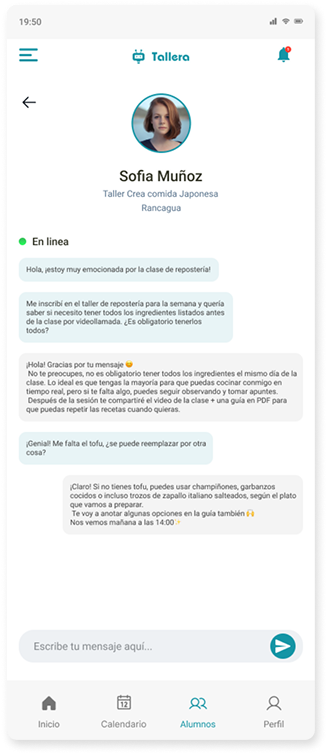
The teacher can easily spot which students are connected in real time from the student list. From there, they can pick one of them and start a direct conversation through the built-in chat.

What each screen does (teacher)

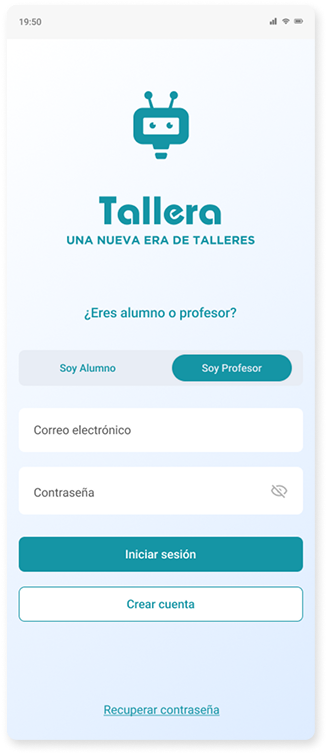
Login

This screen covers the key functions for accessing the app:
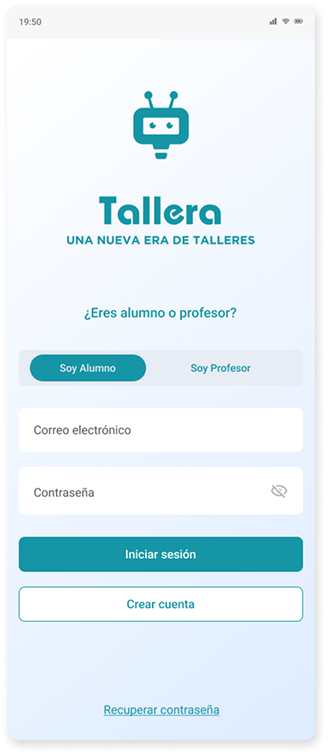
  • A segmented control lets users pick their role (student or teacher).
  • Input fields for email and password, needed to validate the account.
  • Action buttons to log in, sign up as a new user or recover a forgotten password.
Login screen with the Student role selectedLogin screen with the Teacher role selected

Dashboard or home

This section gives an overview of the teacher's day to day. Its main functions include:
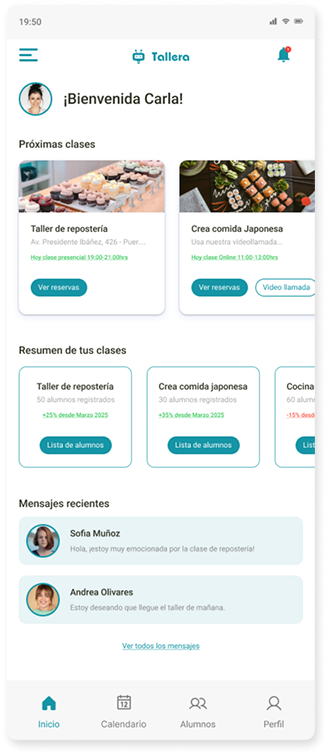
  • Showing the classes scheduled for the day.
  • Displaying bookings per class.
  • Starting video calls straight from the interface, saving time.
  • Reporting how many students are enrolled in each workshop.
  • Comparing whether attendance has gone up or down.
  • Accessing the full student list per workshop.
  • Viewing the latest messages received from students.
Teacher dashboard with upcoming classes, the summary of bookings per workshop and recent messages

Calendar

This view lets the teacher organise and plan their activities easily. Its main functions are:
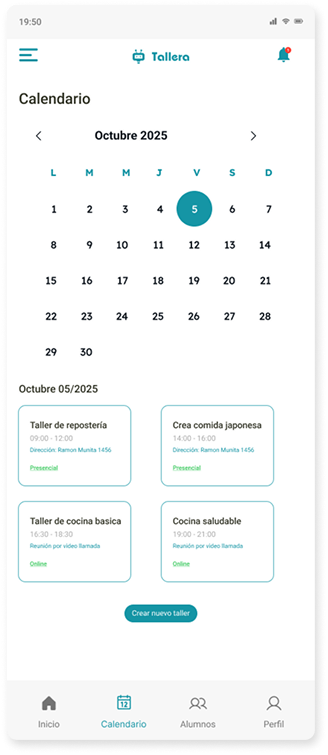
  • Scheduling new workshops directly by picking a date.
  • Checking the daily schedule and clearly seeing the workshops taking place that day.
Teacher's monthly calendar with the day's workshops and the button to create a new workshop

Student management & messages

This section makes communication between teachers and students easier. Its main functions are:
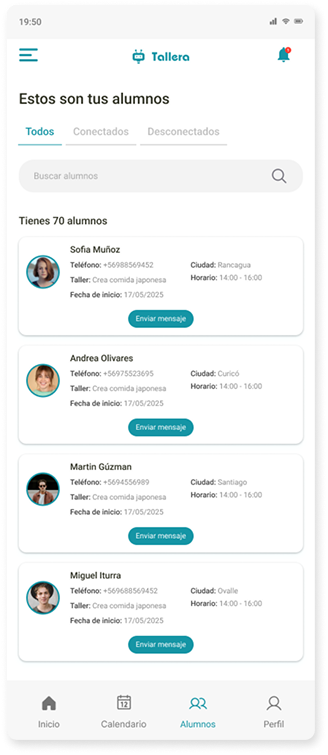
  • Filtering the student list by status (connected, disconnected or all).
  • Searching for students through a search input to speed up interaction.
  • Sending instant messages straight from the interface.
  • Seeing the student's connection status at all times inside the chat, for a more synchronised and fluid experience.
Teacher's student list, filterable by connection status and with a search fieldTeacher's conversation with a student, with the connection status visible in the header

Profile

This section lets the teacher personalise their profile and better understand how their students see them. Its main functions are:
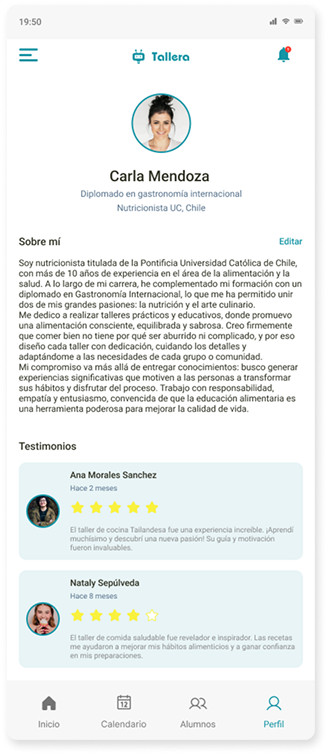
  • Editing the “About me” section to highlight their experience, training and specialisation, helping students make informed decisions when choosing a workshop.
  • Accessing the testimonials left by their students, including comments and ratings, which helps assess the impact of their classes and keep improving.
Teacher profile with the About me section and student testimonials with ratings

Student flow

Once the details are entered and the user taps "Log in", they reach their dashboard. The bottom navigation bar gives quick access to:

  • Home
  • Chat
  • Classes
  • Profile

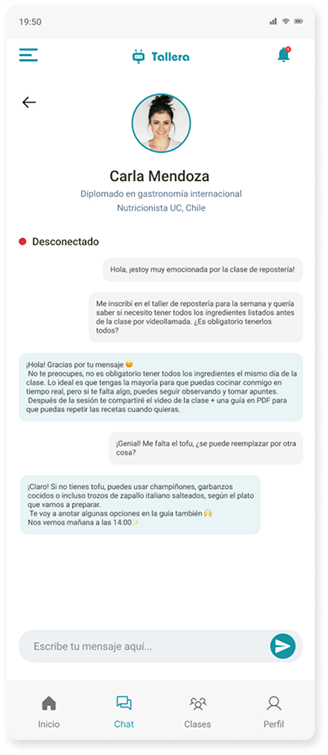
From the Chat section, the user can pick the teacher they want to talk to. Doing so takes them to a screen where they can see and continue the conversation in real time.

In the Classes section, they can also manage their booked workshops, check schedules and make changes if needed.

The student's profile differs from the teacher's because, this being the first version, we want to gather insights that help us spot areas to improve in the app.

Likewise, in the "Organise your account" section, the user can add and manage the payment method that best suits their needs.

What each screen does (student)

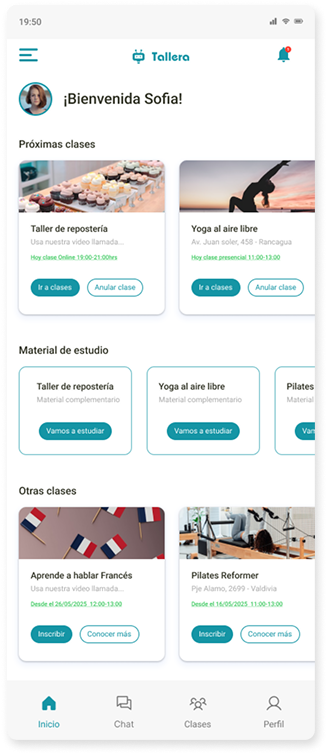
Dashboard or home

Its main functions let the user:

  • See the classes scheduled for the day, with details such as time and address for in-person classes. For remote classes, the "Go to class" button opens the video call directly.
  • Cancel classes.
  • Access the related study material.
  • Sign up for a range of activities, such as yoga, languages, cooking and more.
Student dashboard with upcoming classes, study material and other classes to sign up for

Chat & instant messaging

This feature streamlines communication between users. Its main characteristics include:
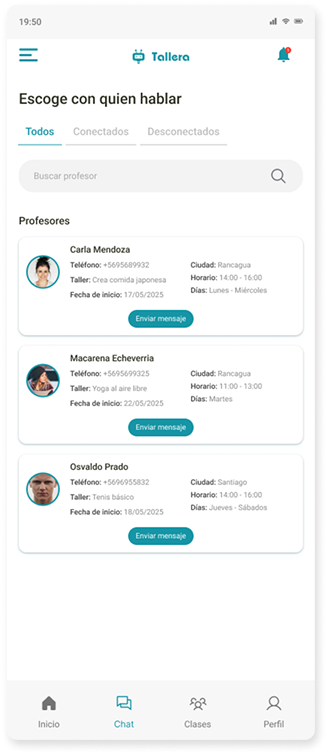
  • Viewing and filtering teachers: shows teachers by status (connected, disconnected) or as a full list, making availability easy to spot.
  • Quick search: an intuitive search field to find a teacher fast.
  • Real-time direct messages: enables instant communication.
  • Sender connection indicator: shows the other person's connection status in every conversation, which is vital for sync and context.
Teacher list filterable by connection status, with a search fieldStudent's conversation with a teacher, with the connection indicator in the header

Classes

This section centralises workshop interactions and offers the following features:
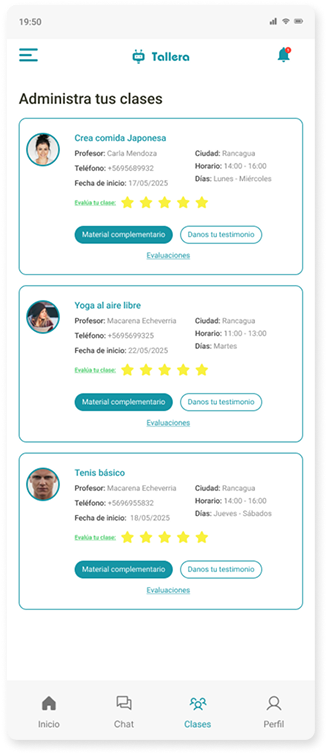
  • Teacher information: access the teacher's full profile.
  • Complementary study material: download or view extra resources to reinforce learning.
  • Rating and testimonial for the teacher: rate the teacher and leave comments or share experiences.
  • Reviewing your own assessments: check the grades or feedback received, where the workshop includes them.
Class detail with the teacher's information, the study material and the teacher rating

Profile

This section gives the user control over their information and their experience on the platform, including:
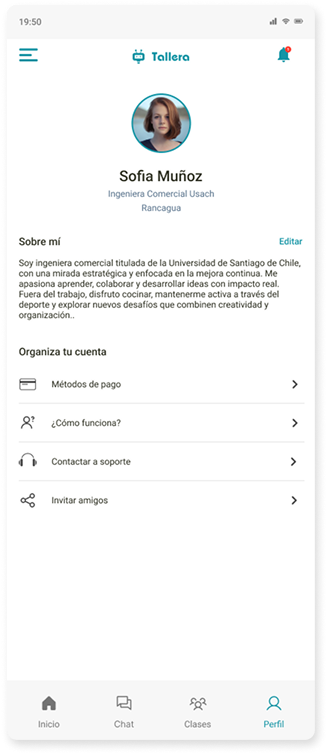
  • Personal profile management: the option to edit the "About me" section.
  • Account and payment settings: organise and add payment methods.
  • "How does it work?" help section: quick access to information for resolving doubts about using the platform.
  • Technical support: a direct channel to contact the support team about any issue.
  • Sharing the app: makes it easy to spread the platform among contacts and friends.
Student profile with About me, account organisation and payment methods, help, support and the option to share the app
Next project
General de Seguros

General de Seguros

Analysis and improvement proposal for General de Seguros' Customer Virtual Platform. Focused on usability, visual hierarchy and consistency.